How to schedule drivers by performance, week by week.
Seven steps that build next week from your needs and your Scorecard: the best drivers first, no fifth day by accident, a backup every day, a steady posting day and a payroll file nobody retypes.
By Daniel Yadav · Published 13 September 2026
Why the weekly schedule costs you
Most DSP schedules are built by hand, from memory and text messages. The week that comes out gives shifts to whoever asks, slips in overtime and gets retyped for payroll. Five gaps cause it:
- The week is built by hand, from memory.
- Anyone can get a shift, good driver or bad.
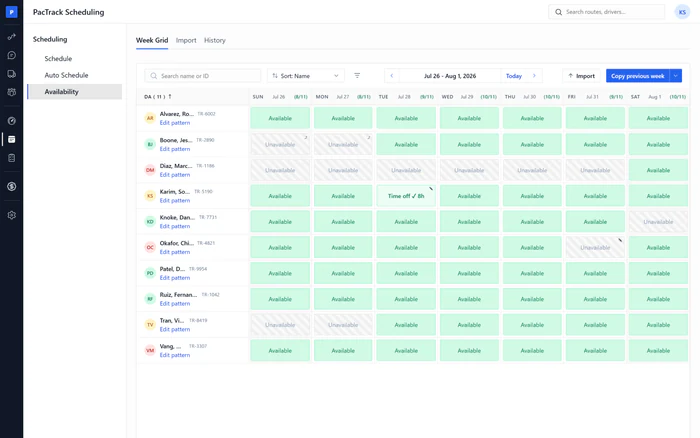
- Availability lives in text messages.
- A fifth day slips in and turns into overtime.
- Payroll gets a retyped copy of the schedule.
What good looks like
- Next week is drafted as soon as Amazon's work blocks are out.
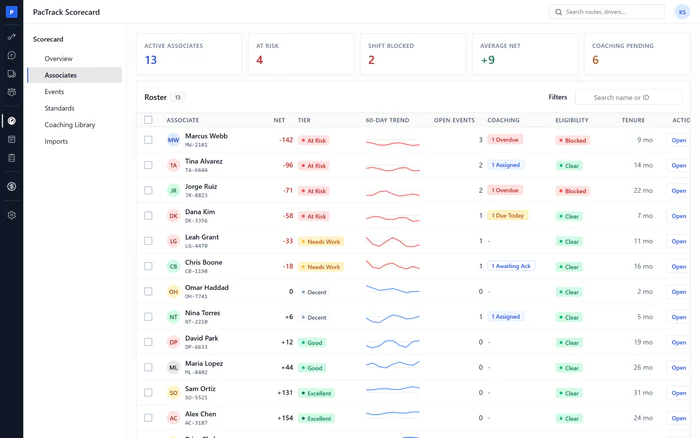
- The best-ranked drivers get their shifts first, and drivers with overdue coaching are skipped.
- No driver gets a fifth 10-hour day that nobody decided on.
- Every day has a backup driver planned.
- Drivers get the week on the same weekday, every week.
- Payroll gets the schedule as a file, not a retyped copy.
The procedure
Seven steps: five every week, one as needed and one every pay period. Ultimate DSP builds, edits and exports the schedule. Sharing it with drivers happens through your own channel.
-
1
Build next week as soon as Amazon's work blocks are out
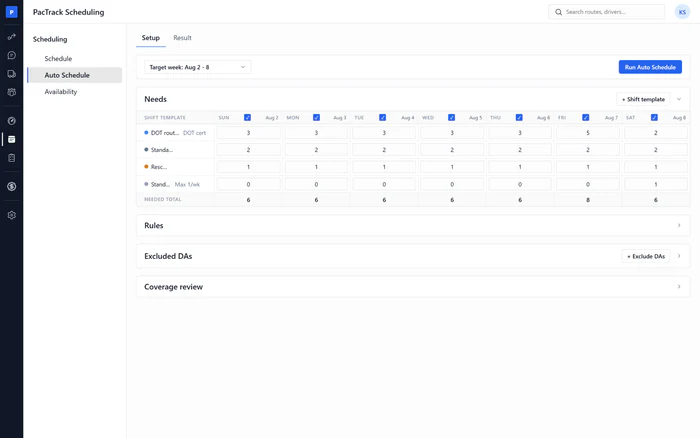
WeeklyWhere Scheduling · Auto ScheduleWho Manager or DispatcherWhen Amazon's work blocks for the coming week are out, open Auto Schedule, pick the week and type how many drivers each shift template needs each day. Check the coverage, run it and send the draft to Schedule for editing.
Done when: The run shows the week filled against your needs, and the draft is on Schedule.
-
2
Give the best-ranked drivers their shifts first
WeeklyWhere Scheduling · Auto ScheduleWho Manager or OwnerKeep Auto Schedule's ranking on Scorecard net score, the default, so the drivers with the best score fill the week first. Drivers with overdue coaching are skipped, and every skip has a reason you can read.
Done when: The assignment log starts with your best-ranked drivers, and drivers below the cut are listed with that reason.
-
3
Keep full-time drivers to four 10-hour days
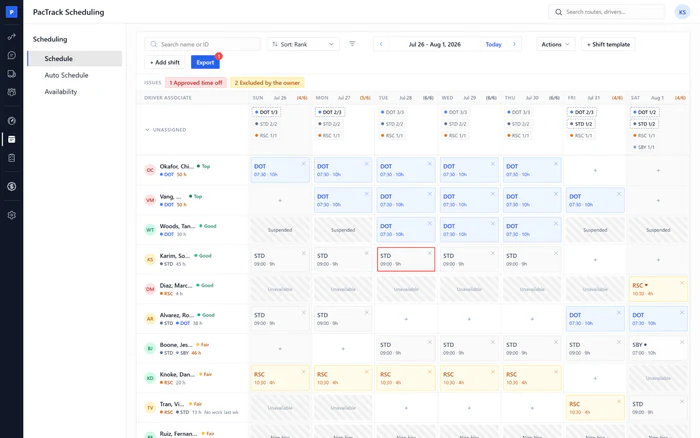
WeeklyWhere Scheduling · ScheduleWho Manager or DispatcherFour 10-hour days is 40 hours. Before adding any shift by hand, read the driver's week hours on Schedule. A fifth 10-hour day turns the row amber, near the 50-hour cap, and a shift that goes over 50 hours is refused. Decide on any fifth day before you place it.
Done when: No driver's week hours are red, and no one has a fifth 10-hour day you did not plan.
-
4
Set a backup driver for every day
WeeklyWhere Scheduling · ScheduleWho Manager or DispatcherAdd a Standby need for every day in Auto Schedule, then fill each open standby slot on Schedule. A standby shift is an ordinary shift in the Standby template, and the day's roster, standby included, flows to Load Out.
Done when: Every day shows its standby slot filled, and no day header is amber.
-
5
Post the schedule on the same day every week
WeeklyWhere Scheduling · ScheduleWho Owner or ManagerFinish the week on Schedule and share it with drivers on the same weekday, every week, several days before the week starts. Ultimate DSP does not publish or send schedules to drivers, so share it through the channel your drivers already use, and keep that day fixed.
Done when: Drivers have next week's schedule on your fixed posting day.
-
6
Cut days for drivers who keep calling out, after coaching
As neededWhere Scheduling · ScheduleWho ManagerWhen a driver keeps calling out, coach first: log each callout as an event on their record and assign coaching. If nothing changes, remove shifts on Schedule, add the driver to Excluded DAs with a reason, and give the freed days to your most reliable drivers.
Done when: The driver has events and coaching on record, and their reduced days are on the schedule with a reason.
-
7
Send the schedule to payroll without retyping it
Every pay periodWhere Scheduling · ScheduleWho Manager or DispatcherClick Export on Schedule, pick your payroll format (Paycom, ADP or a generic file), the range and the options, check the warnings and the row preview, and download the file for your payroll system. Every download is kept in the export log.
Done when: The file is downloaded and imported into payroll, and a new row is in the export log.
The three numbers to watch
Common mistakes
- Building the week from memory.
- Ranking by seniority, or by who asks first.
- Adding a fifth day to cover a gap.
- Planning no backup.
- Posting on a different day every week.
- Retyping the schedule into payroll.